Tabular Editor 3 Preferences
Tabular data model development processes and workflows differ greatly from organization to organization. To ensure that the tool can fit into as many of these workflows as possible, Tabular Editor 3 is highly customizable - not just in terms of the user interface's look and feel, but also on more advanced topics such as web proxies, updates and feedback, row limits, timeouts, schema compare preferences, etc.
This article describes the Tabular Editor 3 Preferences dialogs and the settings that you can control through it.
To access the preferences dialog, go to Tools > Preferences.
Note
All Tabular Editor preferences are stored for each Windows user profile, in the %localappdata%\TabularEditor3 folder. It is possible to migrate your settings to another machine by simply copying the contents of this folder.
Tip
Use the search box at the top of the Preferences dialog to quickly find specific settings.
Tabular Editor > Features
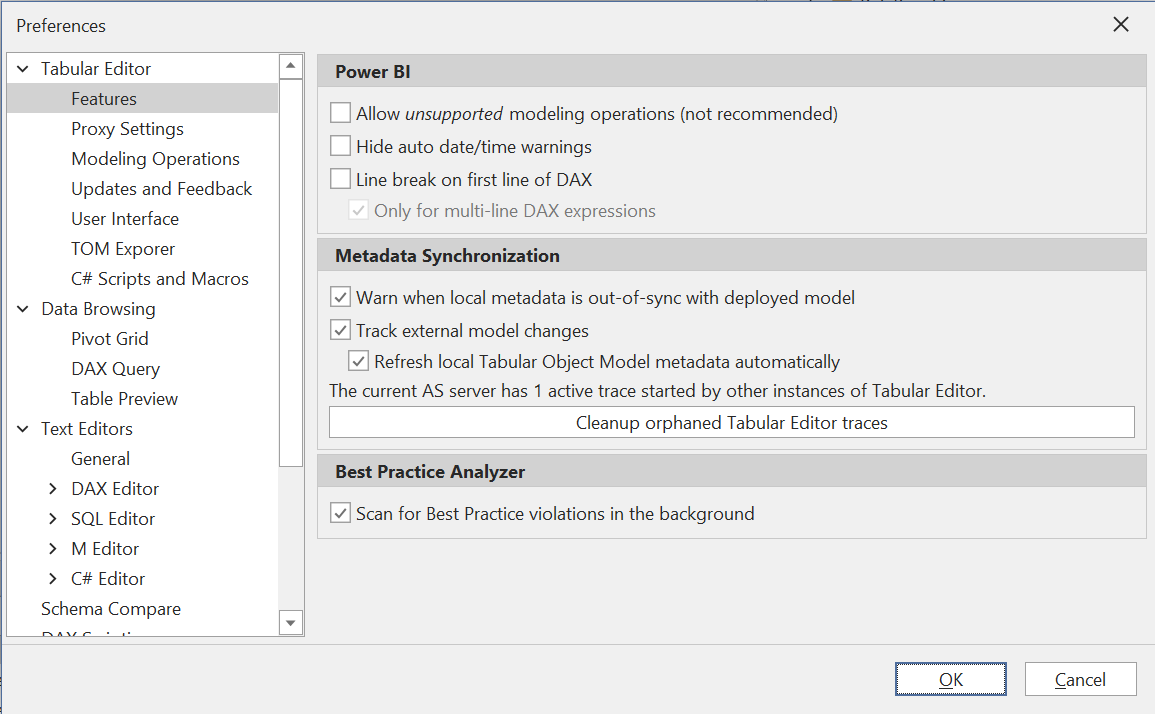
Power BI
Allow unsupported editing (disabled)
This option is only relevant when Tabular Editor 3 is used as an external tool for Power BI Desktop. When checked, all TOM data modeling properties are available for editing when connected to an instance of Power BI Desktop. It's generally recommended to leave this unchecked, to make sure that you do not accidentally make changes to your Power BI file, that are not supported by Power BI Desktop.
Hide auto date/time warnings (disabled)
When checked, warnings about Power BI auto date/time tables will be suppressed. These warnings appear when the "Auto date/time" setting in Power BI Desktop is enabled, which creates calculated tables that trigger warnings in Tabular Editor 3's built-in DAX analyzer.
Line break on first line of DAX (disabled)
In Power BI Desktop it is common to insert a line break on the first line of a DAX expression, due to the way the formula bar displays the DAX code. If you often switch back and forth between Tabular Editor and Power BI Desktop, consider enabling this option to have Tabular Editor 3 insert the line break automatically.
Default Power BI authentication mode (Integrated)
Select the default authentication method (Integrated, ServicePrincipal, or MasterUser) to use when connecting to Power BI datasets.
Metadata Synchronization
These settings control the behavior of Tabular Editor 3 when model metadata is loaded from a database on an instance of Analysis Services. The settings specify how Tabular Editor 3 should deal with metadata changes applied to the database from outside the application.
Warn when local metadata is out-of-sync with deployed model (enabled)
When checked, an information bar is displayed inside Tabular Editor, whenever you have made local changes to the model that have not yet been saved to Analysis Services. For example, if you're wondering why a DAX query or a Pivot Grid does not produce the expected result, this could be due to a measure expression being changed in Tabular Editor without saving the change to Analysis Services. The bar disappears when you hit save (Ctrl+S).
Track external model changes (enabled)
Just like Power BI Desktop can detect when an external tool makes a change to the data model, so too can Tabular Editor. This option is only relevant for local instances of Analysis Services (i.e. msmdsrv.exe processes running on the same machine as Tabular Editor). When checked, Tabular Editor starts a trace on Analysis Services and notifies you if external changes are made.
Refresh local Tabular Object Model metadata automatically (enabled)
When the tracing mechanism as described above is enabled, this option allows Tabular Editor to automatically refresh the model metadata when an external change is detected. This is useful if you often switch back and forth between Power BI Desktop and Tabular Editor 3.
Cleanup orphaned Tabular Editor traces
Normally, Tabular Editor 3 should automatically stop and remove any AS traces started due to the settings above. However, if the application was shut down prematurely, the traces may never be stopped. By clicking this button, all AS traces started by any instance of Tabular Editor will be removed.
Note
The cleanup button is only available when Tabular Editor is connected to an instance of Analysis Services.
Best Practice Analyzer
Scan for Best Practice violations in the background (enabled)
If unchecked, you will have to explicitly run a Best Practice Analysis from inside the Best Practice Analyzer tool window, to view if there are any violations. If checked, the scan happens continuously on a background thread whenever changes are made. For very large models, or models with very complex Best Practice rules, this may cause issues.
Built-in BPA rules (enabled for new users)
Choose whether to enable, disable, or be prompted about using Tabular Editor's built-in Best Practice Analyzer rules. The built-in rules cover key best practices across formatting, metadata, model layout, DAX expressions, and translations. New installations will have built-in rules enabled by default.
DAX Formula Fix-up
Enable formula fix-up (enabled)
Automatically adjusts references in DAX expressions when objects are renamed or moved. This feature ensures that your DAX code remains valid when you reorganize your model.
Enable formula fix-up on paste (enabled)
Automatically adjusts references in DAX expressions when pasting objects. This is useful when copying measures or calculated columns between tables or models.
Direct Lake
Auto-refresh on save (enabled)
Automatically refresh Direct Lake tables when saving changes to ensure data is current. This ensures that your Direct Lake model stays in sync with the underlying data source.
Tabular Editor > Updates and Feedback
![Placeholder: Screenshot of Updates and Feedback preferences page]
Check for updates on start-up (enabled)
When checked, Tabular Editor will check for new versions when the application starts. This ensures you stay up to date with the latest features and bug fixes.
Check for major updates only (disabled)
When checked, only major version updates will trigger notifications. Minor and patch updates will be ignored.
Help improve Tabular Editor by collecting anonymous usage data (enabled)
Data does not contain any personally identifiable information, nor any information about the structure or content of your data models. If you would still like to opt out of telemetry, uncheck this.
Send error reports (enabled)
In cases of crashes, Tabular Editor displays an option for sending a crash report when this is checked. Crash reports are very helpful when debugging, so please leave this checked if you don't mind!
Tabular Editor > Deployment
![Placeholder: Screenshot of Deployment preferences page]
Configure which types of objects are deployed by default when using the deployment wizard:
Deploy data sources (disabled)
Include data source definitions when deploying. Enable this if you want data source connection strings and settings to be deployed along with your model changes.
Deploy partitions (disabled)
Include partition definitions when deploying. Enable this if you want partition configurations to be deployed along with your model changes.
Deploy refresh policy partitions (disabled)
Include incremental refresh policy partitions when deploying. This controls whether partitions created by incremental refresh policies are deployed.
Deploy model roles (disabled)
Include role definitions when deploying. Enable this if you want Row-Level Security (RLS) and Object-Level Security (OLS) roles to be deployed.
Deploy model role members (disabled)
Include role member assignments when deploying. Enable this if you want user and group assignments to security roles to be deployed.
Deploy shared expressions (disabled)
Include shared expressions (M expressions) when deploying. Enable this if you want Power Query shared expressions to be deployed.
Deployment Metadata
Annotate deployment metadata (disabled)
Add deployment timestamp and user information as annotations on deployed objects. This can be useful for tracking when and by whom model changes were deployed.
Backup Settings
Backup on save (enabled)
Create a backup of the model when saving changes locally. This provides a safety net in case you need to revert changes.
Save backup location
Specify the folder where save backups are stored. By default, backups are not created unless a location is specified.
Backup on deploy (enabled)
Create a backup of the target model before deploying changes. This allows you to restore the previous version if needed.
Backup location
Specify the folder where deployment backups are stored. By default, backups are not created unless a location is specified.
Tabular Editor > Defaults
![Placeholder: Screenshot of Defaults preferences page]
New model compatibility level (1600)
Set the default compatibility level for newly created models. Compatibility level 1600 corresponds to SQL Server 2022 and Power BI.
Use latest compatibility level as default (enabled)
Automatically use the latest available compatibility level for new models. When enabled, this overrides the specific compatibility level setting above.
New models use workspace database (enabled)
When creating a new model, automatically create a workspace database on Analysis Services. This allows you to immediately test and query your model during development.
Default save mode (AlwaysAsk)
Choose whether to always save as a file (.bim), folder (multiple JSON files), TMDL (Tabular Model Definition Language), or always ask when saving. Options: AlwaysAsk, File, Folder, TMDL.
Use PBIX file name when saving to disk (enabled)
When saving a model loaded from a PBIX file, use the PBIX filename as the default. This maintains naming consistency between Power BI files and saved model metadata.
Create user options for new models (enabled)
Automatically create .tmuo (Tabular Model User Options) files for new models. These files store user-specific settings like diagram layouts and window positions.
Tabular Editor > Keyboard
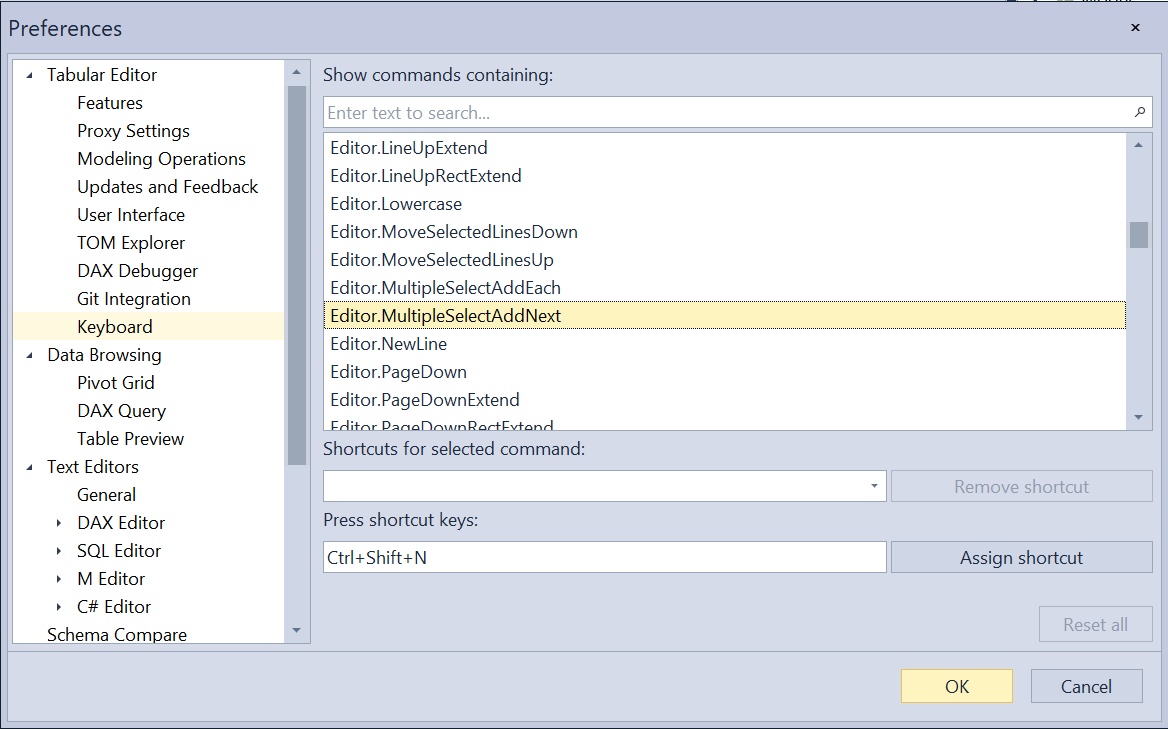
Configure keyboard shortcuts for all Tabular Editor commands. Use the search functionality to quickly find specific commands and assign or modify their keyboard shortcuts to match your preferred workflow.
Tabular Editor > TOM Explorer View
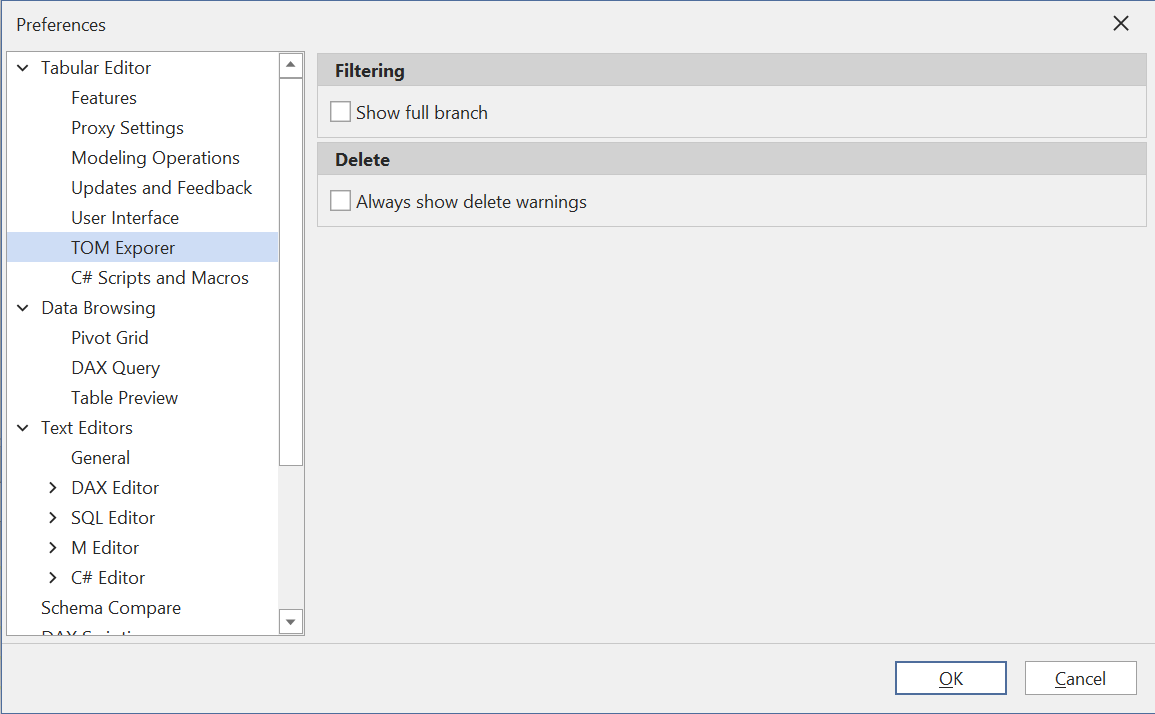
Control which objects and properties are visible in the TOM (Tabular Object Model) Explorer:
Display folders (enabled)
Show or hide display folder groupings. When enabled, objects are organized into their display folder hierarchy.
Hidden objects (disabled)
Show or hide objects marked as hidden in the model. Enable this if you need to work with hidden tables, columns, or measures.
All object types (enabled)
Show all object types in the explorer tree. When disabled, only the most common object types are shown.
Sort alphabetically (enabled)
Sort objects alphabetically instead of by creation order. This makes it easier to find specific objects in large models.
Show measures (enabled)
Display measures in the explorer tree.
Show columns (enabled)
Display columns in the explorer tree.
Show hierarchies (enabled)
Display hierarchies in the explorer tree.
Show partitions (enabled)
Display partitions in the explorer tree.
Show metadata information (disabled)
Display additional metadata properties in tooltips and property grid. This includes information like lineage tags, creation timestamps, and other technical metadata.
Show full branch (disabled)
When filtering the TOM Explorer, by default Tabular Editor 3 shows all items in the hierarchy that matches the filter string, including their parents. If you want to see all child items as well (even though these might not match the filter string), enable this option.
Always show delete warnings (disabled)
If you prefer Tabular Editor 3 to prompt you to confirm all object deletions, enable this setting. Otherwise, Tabular Editor 3 will only prompt you to confirm multi-object deletions, or deletions of objects that are referenced by other objects.
Note
All delete operations in Tabular Editor 3 can be undone by hitting CTRL+Z.
Column Preferences
Configure which columns are visible in multi-column views and their display order.
Tabular Editor > Copy/Paste
![Placeholder: Screenshot of Copy/Paste preferences page]
Control what metadata is included when copying objects:
Include translations (enabled)
Copy translation metadata with objects. When enabled, any translations defined for the copied object will also be copied.
Include perspectives (enabled)
Copy perspective membership with objects. When enabled, the copied object will belong to the same perspectives as the original.
Include RLS (enabled)
Copy Row-Level Security expressions with objects. This applies when copying tables that have RLS rules defined.
Include OLS (enabled)
Copy Object-Level Security settings with objects. This applies when copying objects that have OLS restrictions.
Tabular Editor > Perspectives
![Placeholder: Screenshot of Perspectives preferences page]
Control how perspective membership is handled:
Inherit perspective membership for new objects (disabled)
Newly created objects automatically inherit perspective membership from their parent. For example, a new measure would automatically be added to the same perspectives as its parent table.
Inherit perspective membership for relocated objects (disabled)
Objects that are moved inherit perspective membership from their new parent. This is useful when reorganizing your model structure.
Inherit when adding table to perspective (enabled)
Automatically add all table objects (columns, measures, hierarchies) when a table is added to a perspective.
Inherit when removing table from perspective (enabled)
Automatically remove all table objects when a table is removed from a perspective.
Tabular Editor > Schema Compare
![Placeholder: Screenshot of Schema Compare preferences page]
Configure which changes are ignored during schema comparison when updating table schemas:
Ignore Import mode changes (disabled)
Don't flag changes to Import mode properties. Enable this if you want to ignore changes between Import, DirectQuery, and Dual modes during schema comparison.
Ignore data type changes (disabled)
Don't flag column data type changes. Enable this if you want to ignore data type changes during schema comparison.
Ignore description changes (disabled)
Don't flag changes to object descriptions. Enable this if you don't want to see description changes in the schema comparison.
Ignore decimal to double changes (disabled)
Don't flag changes between decimal and double data types. This is useful when working with data sources that don't distinguish between these types.
Prioritize Analysis Services schema detector (disabled)
Use Analysis Services metadata as the source of truth for schema detection. When enabled, Tabular Editor will query the Analysis Services instance directly instead of using the data source provider's schema information.
Tabular Editor > Save to Folder/File
![Placeholder: Screenshot of Save to Folder preferences page]
Serialization Mode
Use TMDL format (disabled)
Save model metadata using the Tabular Model Definition Language (TMDL) format instead of JSON. TMDL is the modern format recommended for version control and collaboration.
Use recommended serialization settings (enabled)
Apply recommended settings for folder-based serialization (overrides custom settings). When enabled, Tabular Editor uses best practices for saving models to folders, optimized for version control.
Legacy (JSON) Serialization Settings
Prefix filenames (disabled)
Add numeric prefixes to filenames for ordering. This can help maintain a consistent file order in file explorers.
Local relationships (enabled)
Store relationship definitions with individual tables instead of in a central location. This makes it easier to see which relationships belong to each table when using version control.
Local perspectives (enabled)
Store perspective membership with individual objects instead of in a central location. This reduces merge conflicts in version control.
Local translations (enabled)
Store translations with individual objects instead of in a central location. This reduces merge conflicts in version control.
Levels
Select which object types to serialize at different folder levels. This allows you to organize your model files into a hierarchical structure.
Ignore inferred objects (enabled)
Don't serialize objects that are automatically inferred by the engine. This reduces clutter in saved metadata.
Ignore inferred properties (enabled)
Don't serialize properties that are automatically inferred by the engine. This keeps saved metadata clean and focused on explicitly set values.
Ignore timestamps (enabled)
Don't serialize timestamp metadata. This is highly recommended for version control as it prevents unnecessary changes in every commit.
Ignore lineage tags (disabled)
Don't serialize Power BI lineage tag metadata. Enable this if you don't want lineage information in your saved metadata.
Ignore privacy settings (disabled)
Don't serialize data source privacy settings. Enable this if you manage privacy settings separately.
Include sensitive data (disabled)
Include sensitive information like passwords in serialized metadata. This is not recommended for security reasons.
Ignore incremental refresh partitions (disabled)
Don't serialize partitions created by incremental refresh policies. Enable this if you want incremental refresh to be managed separately from your saved metadata.
Split multiline strings (enabled)
Split long string values across multiple lines for better readability in version control. This makes it easier to see changes in DAX expressions and other long text properties.
Sort arrays (disabled)
Sort array elements alphabetically for consistent serialization. This can reduce meaningless differences in version control, but may change the logical order of some elements.
TMDL Serialization Settings
Indentation mode (tabs)
Choose between tabs or spaces for indentation in TMDL files. Tabs are the default and recommended option.
Indentation spaces (4)
When using spaces, specify the number of spaces per indentation level.
Data Browsing > General
![Placeholder: Screenshot of Data Browsing General preferences page]
Auto-refresh data preview (enabled)
Automatically refresh table preview windows when model changes are saved. This feature is super-useful when debugging - update an expression in one window while having a data preview open in another. Whenever you hit CTRL+S, the preview is automatically refreshed.
Auto-execute DAX queries (enabled)
Automatically execute DAX queries when model changes are saved. Similar to auto-refresh data preview, this allows you to see the immediate impact of changes to measures or calculated columns.
DAX query smart selection (enabled)
When executing a partial selection in a DAX query, intelligently determine the query context. This allows you to execute just a portion of your query for testing.
Keep filtering and sorting in DAX query results (WhenQueryUnchanged)
Control whether to preserve grid filters and sorting when re-executing queries:
- Never: Sorting and filtering are always reset when a query is executed
- WhenQueryUnchanged: Sorting and filtering are reset only when the query is modified
- Always: Sorting and filtering are never reset if the columns still exist
Direct query max rows (100)
Maximum number of rows to retrieve in Direct Query mode. Adjust this if you need to preview more data, but be mindful of performance.
DAX query max rows (1000)
Maximum number of rows to retrieve for DAX queries. Increase this if you need to analyze larger result sets.
Data Browsing > Pivot Grid
![Placeholder: Screenshot of Pivot Grid preferences page]
Auto-refresh pivot grid (enabled)
Automatically refresh pivot grids when model changes are saved. Just like with DAX queries, this allows you to immediately see the impact of changes to measures.
Pivot grid customization default layout (StackedDefault)
Choose the default layout for the pivot grid field list. Options include:
- StackedDefault: Fields and areas in a single stacked panel
- StackedSideBySide: Fields and areas in side-by-side panels
- TopPanelOnly: Field list at the top only
- BottomPanelOnly2by2: Field list in a 2x2 grid at the bottom
- BottomPanelOnly1by4: Field list in a 1x4 layout at the bottom
Show all fields in pivot customization (enabled)
Display all available fields in the pivot grid field list by default, including hidden fields.
Pivot header word wrap (enabled)
Enable word wrapping in pivot grid headers. This makes long field names more readable.
Warn if pivot grid fields mismatch (enabled)
Show a warning when pivot grid field definitions don't match the current model. This can happen if you've deleted or renamed fields used in a saved pivot grid.
Always show pivot grid field list (enabled)
Keep the pivot grid field list visible by default. Disable this if you prefer more screen space for the pivot grid itself.
DAX Editor > General
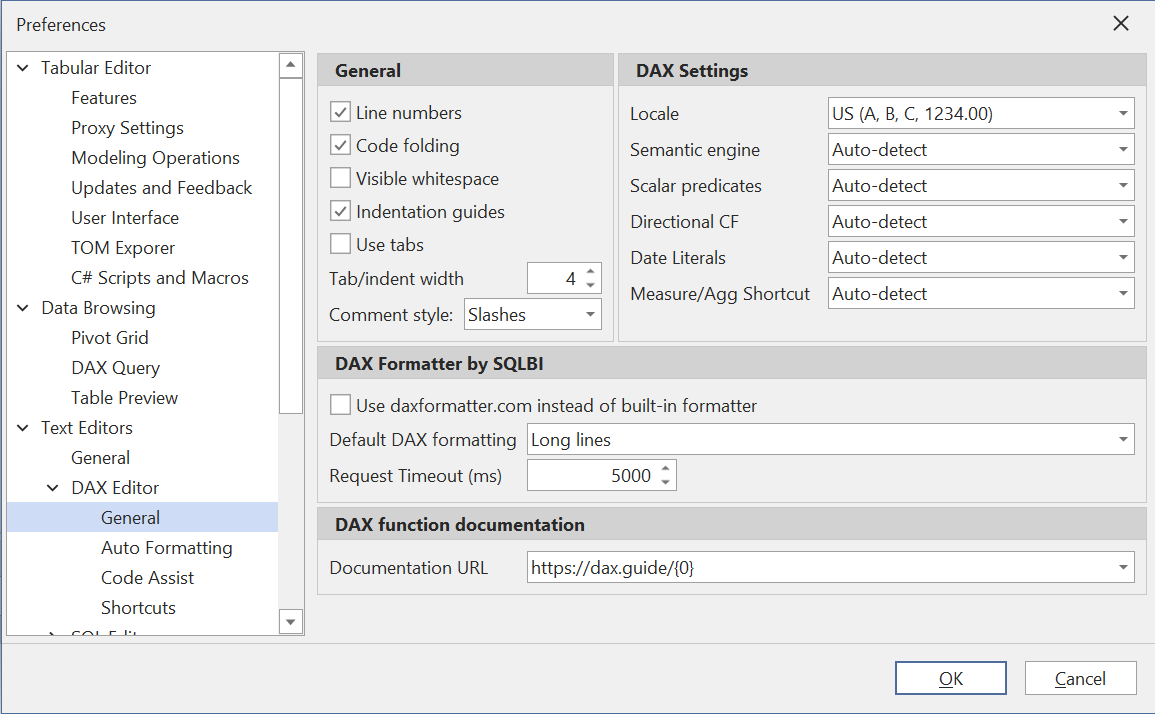
Tabular Editor 3's DAX editor is highly configurable. This page provides settings for general configuration of the DAX editor:
Line numbers (enabled)
Display line numbers in the left margin of the editor.
Code folding (enabled)
Enable collapsible regions in DAX code for better readability. Make sure you try out this feature!
Visible whitespace (disabled)
Show dots for spaces and arrows for tabs. This can be helpful when diagnosing indentation issues.
Indentation guides (enabled)
Display vertical lines to show indentation levels.
Use tabs (disabled)
When checked, a tab character (\t) is inserted whenever the TAB button is hit. Otherwise, a number of spaces corresponding to the Indent width setting is inserted.
Comment style (slashes)
DAX supports line comments that use slashes (//) or hyphens (--). This setting determines which style of comment is used when Tabular Editor 3 generates DAX code.
DAX function documentation
Use this setting to specify which URL to launch in the default web browser, whenever you hit F12 while the cursor is on a DAX function. Options include https://dax.guide (recommended) and Microsoft's official documentation.
DAX Settings
Locale
Specify the locale for DAX functions and formatting.
Analysis Services version settings
These settings are relevant only when Tabular Editor 3 cannot determine the version of Analysis Services used, as is the case when a Model.bim file is loaded directly. In this case, Tabular Editor tries to guess which version the model will be deployed to, based on the compatibility level. If Tabular Editor reports incorrect semantic/syntax errors, you may need to tweak these settings.
DAX Editor > Auto Formatting
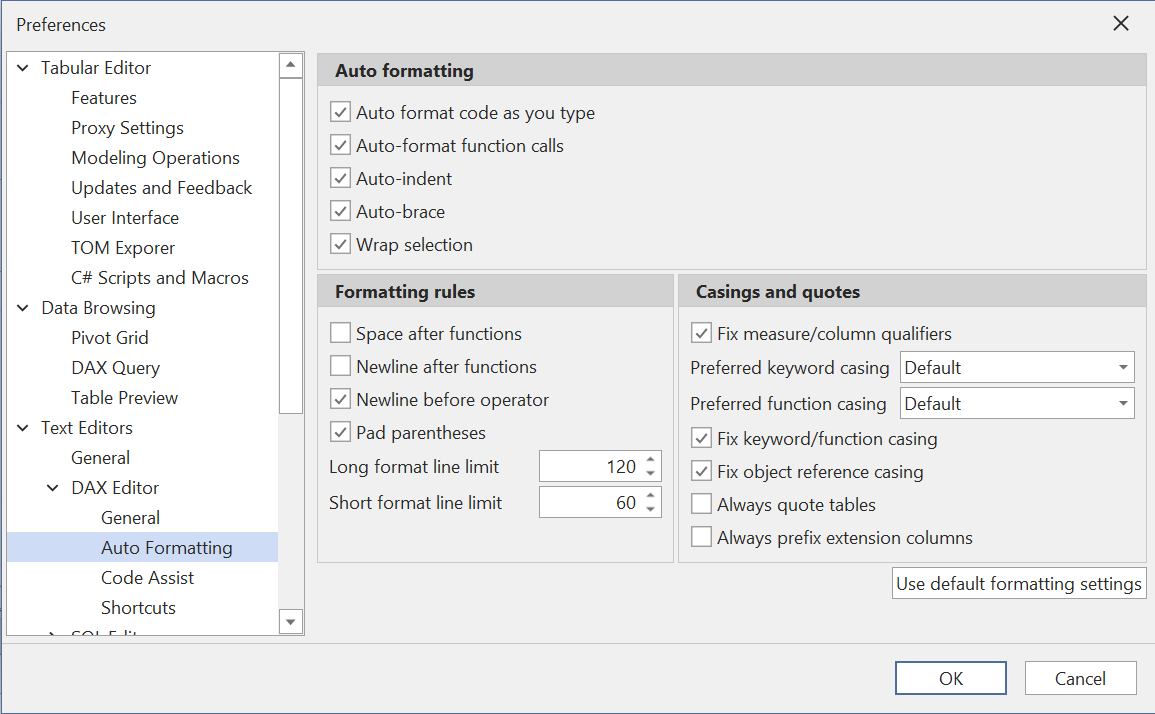
The DAX Editor is very powerful and helps you produce beautiful, readable DAX code as you type.
Auto format code as you type (enabled)
This option will automatically apply certain formatting rules whenever certain keystrokes occur. For example, when a parenthesis is closed, this feature will ensure that everything within the parentheses is formatted according to the other settings on this page.
Auto-format function calls (enabled)
This option specifically controls whether automatic formatting of function calls (spacing between arguments and parentheses) should happen when a parenthesis is closed.
Auto-indent (enabled)
This option automatically indents function arguments when a line break is inserted within a function call.
Auto-brace (enabled)
This option automatically inserts the closing brace or quote whenever an opening brace or quote is entered.
Wrap selection (enabled)
When enabled, this option automatically wraps the current selection with the closing brace, when an opening brace is entered.
Formatting Rules
These settings control how DAX code whitespace is formatted, both when auto-formatting occurs and when code is manually formatted.
Space after functions (disabled)
Newline after functions (disabled)
Applies only when a function call needs to be broken across multiple lines.
Pad parentheses (enabled)
Long format line limit (120)
The maximal number of characters to keep on a single line before an expression is broken across multiple lines, when using the Format DAX (long lines) option.
Short format line limit (60)
The maximal number of characters to keep on a single line before an expression is broken across multiple lines, when using the Format DAX (short lines) option.
Casings and Quotes
In addition to formatting the DAX code whitespace, Tabular Editor 3 can also fix object references and function/keyword casings.
Fix measure/column qualifiers (enabled)
When checked, table prefixes are automatically removed from measure references, and automatically inserted on column references.
Preferred keyword casing (UPPER)
This setting allows you to change the casing used for keywords, such as ORDER BY, VAR, EVALUATE, etc.
Preferred function casing (UPPER)
This setting allows you to change the casing used for functions, such as CALCULATE(...), SUM(...), etc.
Fix keyword/function casing (enabled)
When checked, casing of keywords and functions is automatically corrected whenever code is auto-formatted or manually formatted.
Fix object reference casing (enabled)
DAX is a case-insensitive language. When this is enabled, references to tables, columns and measures are automatically corrected such that the casing matches the physical name of the referenced objects.
Always quote tables (disabled)
Referencing certain table names do not require surrounding single quotes in DAX. However, if you prefer table references to always be quoted, you can check this option.
Always prefix extension columns (disabled)
Extension columns can be defined without a table name. When checked, the DAX editor will always add the table prefix to an extension column.
DAX Editor > Code Assist
![Placeholder: Screenshot of DAX Editor Code Assist preferences page]
On this page, you can configure the two most important Code Assist features, namely calltips (aka. "parameter info") and auto-complete.
Auto-complete trigger
Control when the auto-complete list appears. Options include automatic triggering after typing a certain number of characters, or manual triggering with CTRL+Space.
Calltip trigger
Control when parameter information appears. Options include automatic triggering when opening a function parenthesis, or manual triggering.
Incremental search (enabled)
Enable fuzzy/incremental searching in auto-complete. This allows you to find items by typing parts of their name, not just the beginning.
Suggest table names (enabled)
Include table names in auto-complete suggestions.
Always quote table names (disabled)
Automatically quote table names in suggestions, even when not required.
Show first letter only (disabled)
Only show items starting with the typed letter. Disable this to use incremental search instead.
DAX Editor > Code Actions
![Placeholder: Screenshot of DAX Editor Code Actions preferences page]
Configure automatic code improvement suggestions:
Variable prefixes
Define acceptable prefixes for variable names (e.g., _, __, $, var_, var, v_, v, VAR_). Code actions will suggest adding these prefixes to variable names that don't follow the convention.
Column prefixes
Define acceptable prefixes for temporary column names (e.g., @, $, _, x, x_). Code actions will suggest adding these prefixes to temporary column names that don't follow the convention.
SQL Editor / M Editor / C# Editor
![Placeholder: Screenshot of SQL/M/C# Editor preferences pages]
Similar configuration options are available for SQL, M (Power Query), and C# script editors, including:
- Syntax highlighting and color schemes
- Auto-formatting options
- Code assist and auto-complete features
- Comment styles and indentation preferences
Each editor can be customized independently to match your preferred coding style.
DAX Formatter
![Placeholder: Screenshot of DAX Formatter preferences page]
DAX formatter consent (disabled)
Agree to send DAX code to the external DAX formatting service (www.daxformatter.com). When enabled, you can use this service to format DAX code according to community standards.
DAX formatter request timeout (5000)
Timeout in milliseconds for DAX formatter requests. Increase this if you frequently get timeout errors when using the DAX formatter.
DAX Optimizer Integration
![Placeholder: Screenshot of DAX Optimizer Integration preferences page]
Configure integration with DAX Optimizer (Enterprise Edition only):
Connect automatically (null/prompt)
Automatically connect to DAX Optimizer when available. When not set, you will be prompted the first time.
Obfuscate VPAX files (enabled)
Anonymize model metadata when sending to DAX Optimizer. This protects sensitive information like table and column names while still allowing analysis.
Obfuscation dictionary directory (%LocalAppData%\TabularEditor3\DaxOptimizer)
Specify where obfuscation dictionaries are stored. The dictionary maintains consistent obfuscation across multiple analyses.
VertiPaq Analyzer
![Placeholder: Screenshot of VertiPaq Analyzer preferences page]
Include TOM metadata (enabled)
Include Tabular Object Model metadata in VertiPaq Analyzer statistics. This provides richer information about your model structure.
Read stats from data (enabled)
Read statistics by scanning actual data (more accurate but slower). When disabled, only metadata is used.
Direct Lake extraction mode (ResidentOnly)
How to extract statistics from Direct Lake models:
- ResidentOnly: Only analyze data currently loaded in memory
- All: Include non-resident data (slower, may trigger data loading)
Read stats from Dynamic Management Views (disabled)
Use DMVs to gather statistics (faster but less accurate). This is an alternative to reading from data.
Relationship sample rows (3)
Number of rows to sample when analyzing relationships. Higher values provide more accuracy but take longer.
Column batch size (50)
Number of columns to analyze in each batch. Adjust this based on your model size and performance requirements.
Power BI Integration
![Placeholder: Screenshot of Power BI Integration preferences page]
Power BI endpoint base URL (https://api.powerbi.com)
The base URL for Power BI API calls. Change this if you're working with a sovereign cloud or custom environment.
Fabric endpoint base URL (https://api.fabric.microsoft.com)
The base URL for Microsoft Fabric API calls. Change this if you're working with a sovereign cloud or custom environment.
Use embedded browser for authentication (enabled)
Use the embedded browser for OAuth authentication instead of the system browser. This provides a more integrated experience.
Proxy Settings
![Placeholder: Screenshot of Proxy Settings preferences page]
Proxy type (None)
Choose between:
- None: No proxy configuration
- System: Use system proxy settings
- Custom: Specify custom proxy configuration
Proxy address
The address of the proxy server (e.g., http://proxy.company.com:8080).
Proxy user
Username for proxy authentication if required.
Proxy password
Password for proxy authentication (stored encrypted).
Use default credentials (enabled)
Use the current Windows credentials for proxy authentication. This implements the same behavior as Power BI Desktop.
Bypass proxy on local (enabled)
Bypass the proxy for local addresses. This is recommended for performance.
Proxy bypass list
List of addresses that should bypass the proxy (e.g., localhost;*.company.local).
Next Steps
For a user-friendly guide to the most commonly adjusted preferences, see the getting started guide (Personalizing TE3)[xrefid: personalizing-te3].