Advanced Refresh Dialog
The Advanced Refresh dialog provides fine-grained control over data refresh operations, allowing you to configure refresh type, parallelism, incremental refresh settings, and override profiles. This is useful when you need more control than the standard refresh menu options provide.
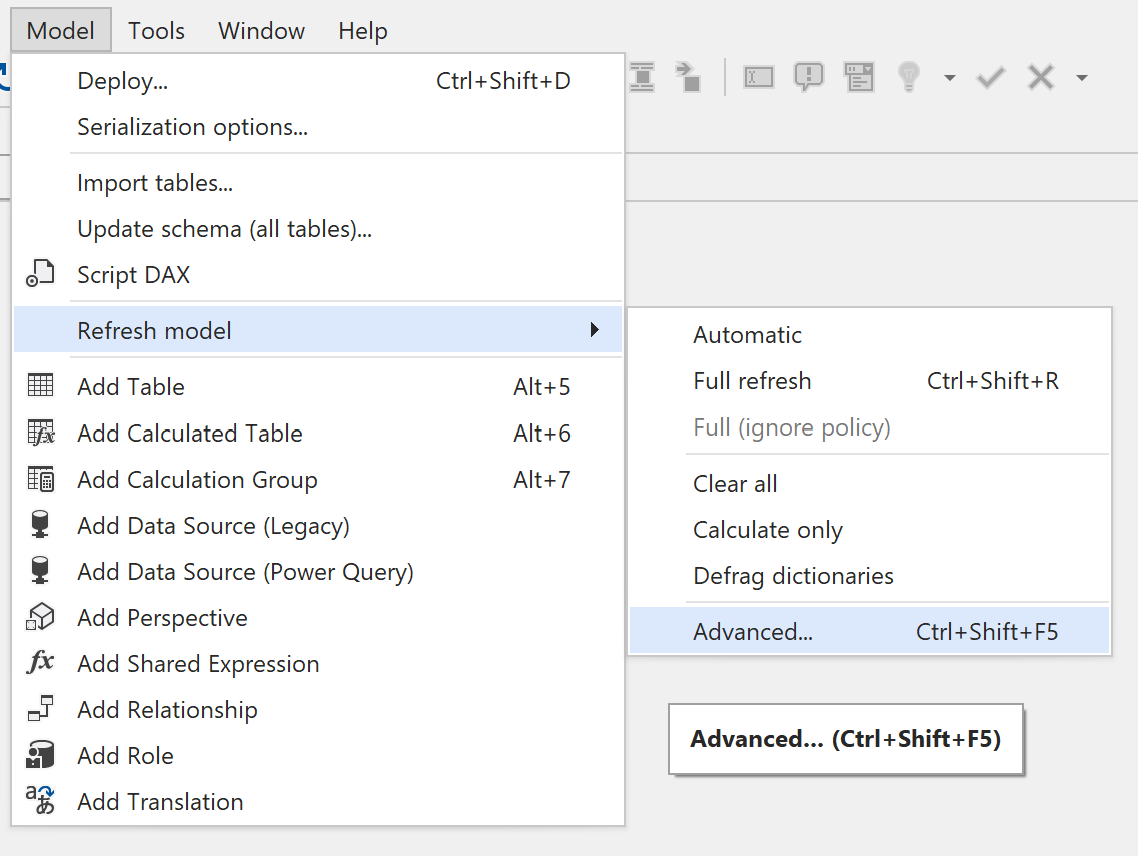
To open the Advanced Refresh dialog, go to Model > Refresh model > Advanced... or use the keyboard shortcut Ctrl+Shift+F5.
Note
The Advanced Refresh dialog is available on the Business and Enterprise Edition.
Refresh scope
The refresh scope indicates which objects will be refreshed. The scope depends on what is selected in the TOM Explorer when you open the dialog:
- Entire model: When no specific tables or partitions are selected
- Selected tables: When one or more tables are selected
- Selected partitions: When one or more partitions are selected
General Settings
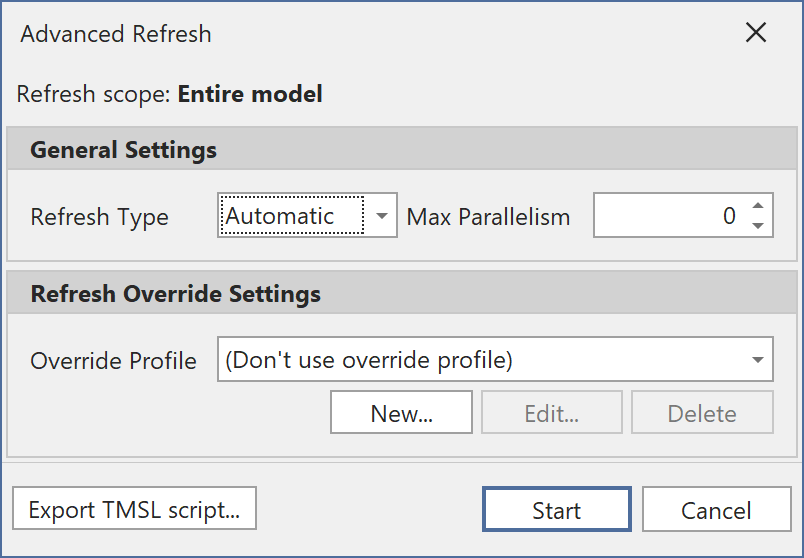
Refresh Type
The Refresh Type dropdown lets you choose the type of refresh operation to perform. Available options depend on the refresh scope:
| Refresh Type | Description | Availability |
|---|---|---|
| Automatic | Lets Analysis Services determine the optimal refresh type based on the current state of objects | All scopes |
| Full | Drops all data and reloads from the data source, then recalculates all dependent objects | All scopes |
| Clear | Drops all data from the selected objects without reloading | All scopes |
| DataOnly | Loads data from the data source without recalculating dependent objects | All scopes |
| Calculate | Recalculates the selected objects and all their dependents without reloading data | All scopes |
| Defrag | Defragments the dictionaries for all columns in the scope | Model and table scope only |
| Add | Adds new data to partitions without processing existing data | Partition scope only |
Max Parallelism
The Max Parallelism setting controls how many objects can be processed simultaneously during the refresh operation. A value of 0 means unlimited parallelism, allowing Analysis Services to process as many objects in parallel as resources permit. Set a specific value to limit parallel operations, which can be useful when you want to reduce resource consumption on the server.
Incremental Refresh Settings
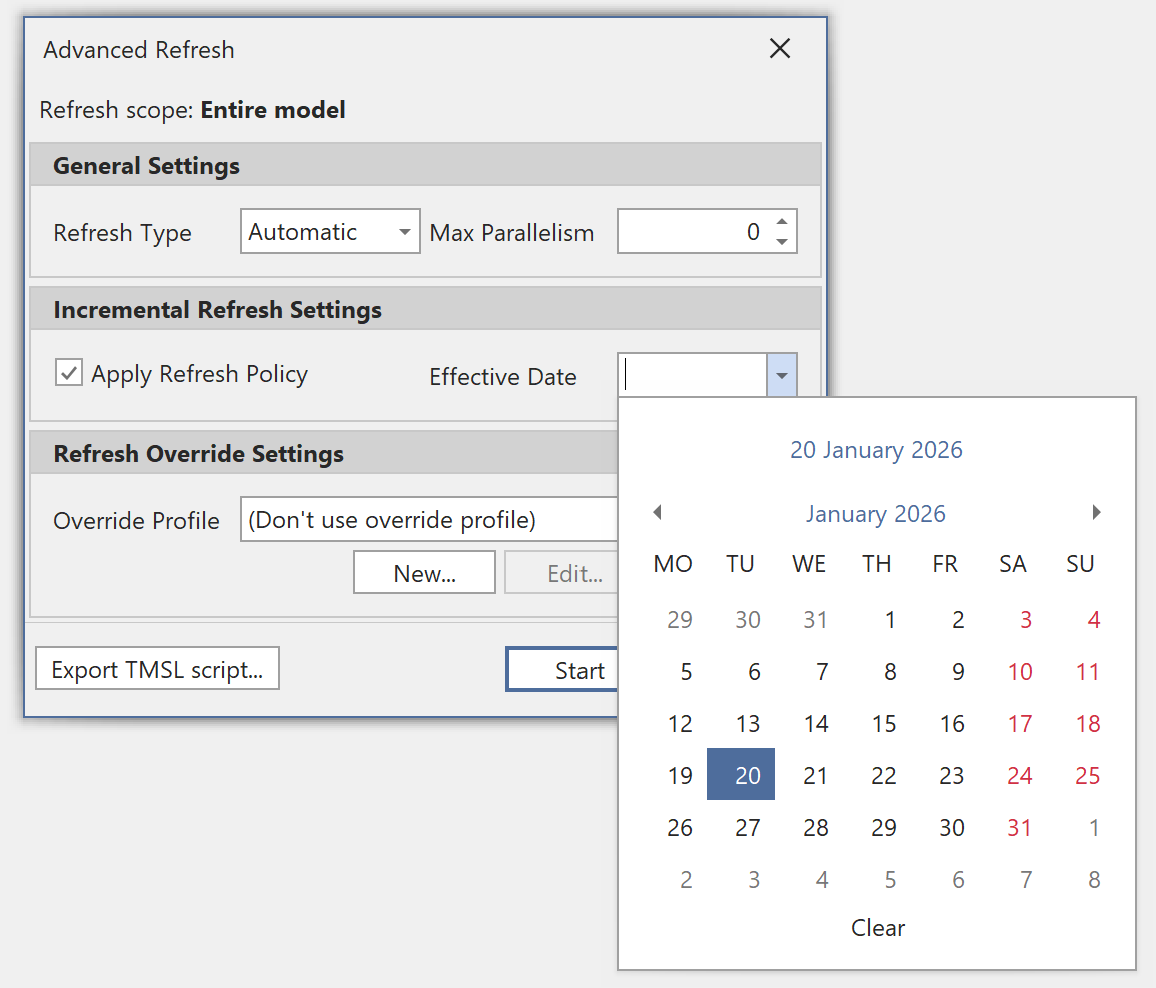
The Incremental Refresh Settings section appears when the refresh scope includes at least one table with an incremental refresh policy configured. This section is not available at partition scope.
- Apply Refresh Policy: When checked, the refresh operation will honor the incremental refresh policy defined on the table(s), creating and managing partitions according to the policy's rolling window settings.
- Effective Date: Specifies the date to use when evaluating the incremental refresh policy. By default, this is the current date, but you can select a different date to simulate how the refresh would behave at a different point in time. This is useful for testing incremental refresh configurations.
Refresh Override Settings
Refresh overrides allow you to temporarily modify certain properties for the duration of a refresh operation without changing the actual model metadata. This eliminates the risk of accidentally leaving temporary modifications in your model.
Use cases for refresh overrides
- Limiting data during development: Override partition queries to load only a subset of rows (e.g., using TOP or WHERE clauses), speeding up refresh operations while developing and testing
- Refreshing from alternative sources: Load data from a test or development database instead of the production source configured in the model
- Testing with modified expressions: Override shared expressions (M parameters) to test different configurations
Override profiles
Override profiles store named configurations of TMSL overrides that you can reuse across refresh operations.
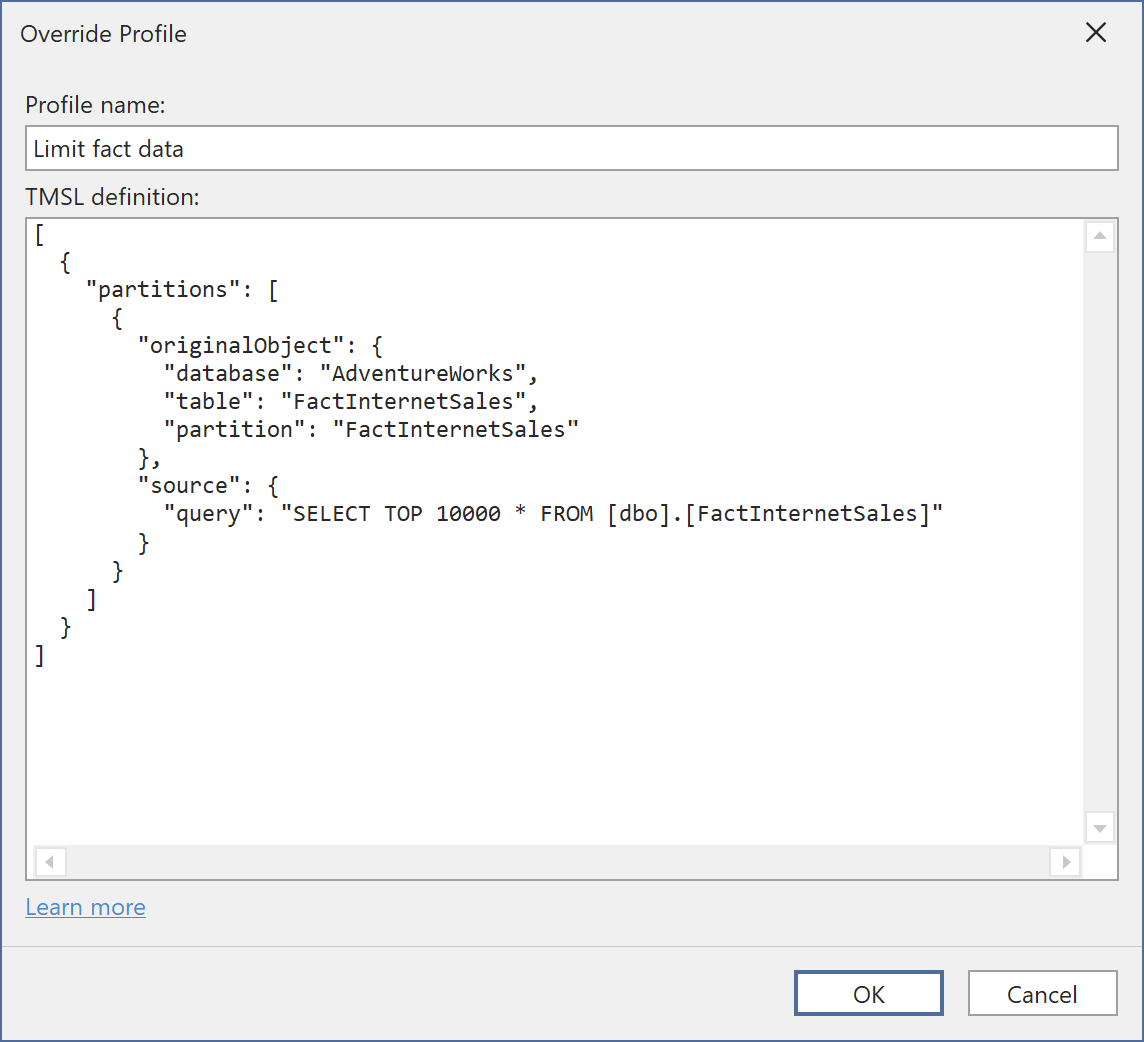
- New...: Creates a new override profile. You provide a profile name and the TMSL definition specifying the overrides.
- Edit...: Modifies the selected override profile.
- Delete: Removes the selected override profile.
The TMSL definition follows the TMSL refresh command specification, allowing you to override properties on:
- Data sources
- Shared expressions
- Partitions
- Data columns
Tip
See Refresh Override Profiles for detailed examples and TMSL code snippets you can use as starting points for your own override profiles.
Profile storage
Override profiles are stored per-model in the UserOptions.tmuo file. When working with model metadata saved on disk, the .tmuo file is stored alongside the model files. When connected directly to a model through the XMLA endpoint, the .tmuo files are stored under %LocalAppData%\TabularEditor3\UserOptions.
Export TMSL script
The Export TMSL script... button opens a dialog where you can view and copy the generated TMSL refresh command. This is useful when you want to:
- Execute the refresh command through other tools (such as SQL Server Management Studio)
- Include the refresh command in automation scripts or CI/CD pipelines
- Review the exact TMSL that will be sent to Analysis Services